
How to Publish and Update a Blog Post in WordPress (Step by Step)
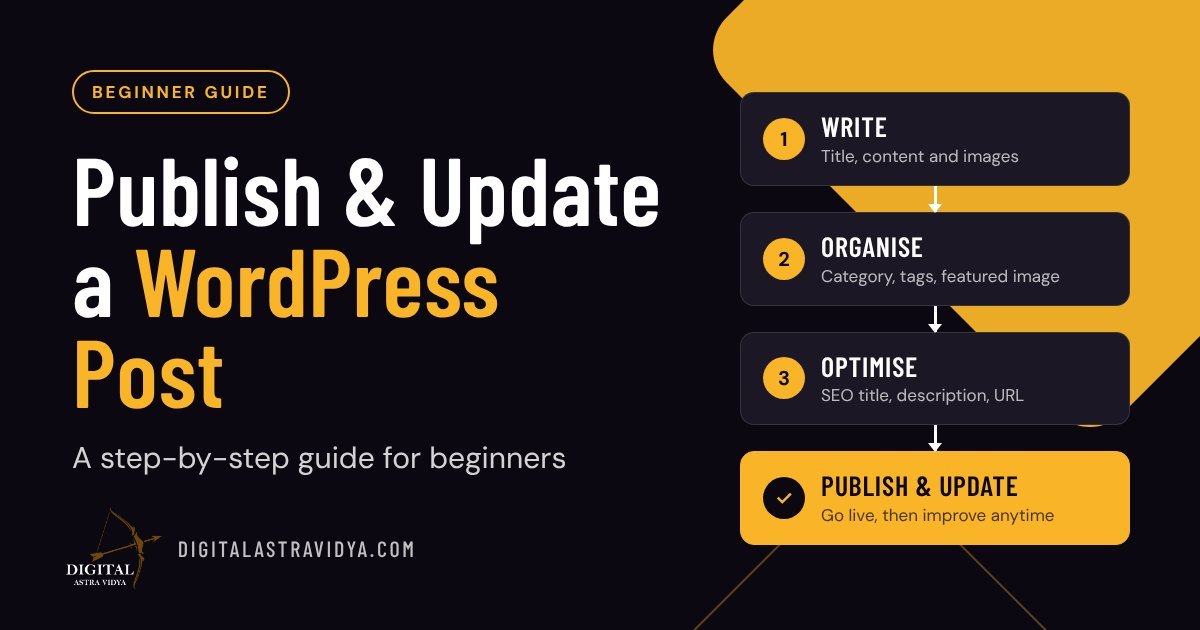
Short answer: To publish a post in WordPress, go to Posts → Add New Post, add a title and content, choose a category and featured image, fill in the SEO title and description, then click Publish. To update it later, open Posts → All Posts, click Edit on the post, make your changes and click Update. WordPress saves every version, so you can restore an older one at any time.
Before you start
You need three things: a login to your WordPress dashboard (yoursite.com/wp-admin), your article text ready in a document, and one image for the post. Writing in a document first lets you focus on the words before you think about formatting.
Part 1: Publish a new post
- Open the editor. In the left menu, go to Posts → Add New Post.
- Add a clear title. Use the words people actually search for. “How to Start a Podcast” beats “My Podcast Journey”.
- Add your content. Paste or type your article. WordPress turns each paragraph, heading and list into a block you can move, style or delete.
- Use headings properly. Your title is the main heading (H1). Use H2 for main sections and H3 for sub-points. This helps readers scan and helps Google understand your page.
- Add images. Click +, choose Image, and upload. Always fill in the Alt text: a short description of the image for visually impaired readers and search engines.
- Add links. Link to 2 or 3 related articles on your own site, and to trusted sources for any facts. Select the words and press Ctrl + K (Cmd + K on Mac).
- Choose a category. In the right panel, tick one main category (for example, Beginner) and untick Uncategorized.
- Add tags. Add 2 to 5 specific tags that describe the topic.
- Set a featured image. This is the thumbnail on your blog page and in social media shares.
- Write an excerpt. One or two sentences summarising the post. Many themes show it on the blog list.
- Check the URL slug. Keep it short, lowercase and keyword-based, with hyphens between words.
- Fill in the SEO box. In your SEO plugin (such as AIOSEO or Yoast), add the SEO title (about 50 to 60 characters) and meta description (about 150 to 160 characters). This is the text people see on Google.
- Preview. Click Save draft, then Preview, and check it on desktop and mobile.
- Publish. Click Publish, confirm, and open the live post. If your site uses a caching plugin, clear the cache so visitors see the new post.
Part 2: Update an existing post
- Go to Posts → All Posts.
- Find the post using the search box or the category filter, and click Edit.
- Make your changes: correct a fact, add a new section, refresh an example or replace an image.
- Click Update. The live post changes immediately (clear the cache if needed).
- If you made a significant change, mention it in the post, for example “Updated October 2026: added new Google Ads settings.” Readers and search engines value fresh, accurate content.
How to undo a mistake: revisions
Every time you save, WordPress stores a revision. Open the post, find Revisions in the right panel, and use the slider to compare versions side by side. Click Restore This Revision to bring back an older version. This is one of the biggest advantages of using a CMS: nothing is lost.
Draft, scheduled, published or private?
| Status | What it means |
|---|---|
| Draft | Saved but not visible to the public |
| Pending review | Waiting for an Editor or Administrator to approve |
| Scheduled | Will publish automatically at the date and time you set |
| Published | Live on your website |
| Private | Visible only to logged-in Administrators and Editors |
To schedule a post, click the Publish date in the right panel and choose a future date and time.
Pre-publish checklist
- Title uses the words people search for
- First paragraph answers the main question directly
- H2 and H3 headings in a logical order
- Every image has alt text and is compressed
- 2 or 3 internal links and sources for any facts
- One category, a few tags and a featured image
- Short, keyword-based slug
- SEO title and meta description filled in
- Checked in Preview on mobile
- Cache cleared after publishing
Common beginner mistakes
- Leaving posts in “Uncategorized”. It makes the site harder to navigate and weakens SEO.
- Using bold text instead of headings. It looks like a heading but search engines cannot tell.
- Uploading huge images. Large files slow the page down. Resize and compress before uploading.
- Changing the slug after publishing. The old link breaks. If you must change it, set up a redirect.
- Never updating old posts. Outdated content loses rankings and trust over time.
Frequently asked questions
What is the difference between Update and Publish? Publish makes a new post live for the first time. Update saves changes to a post that is already live.
Can I edit a post after publishing it? Yes. Open it from All Posts, change anything, and click Update. Previous versions are kept as revisions.
How do I make a post go live at a later time? Change the publish date in the right panel to a future date and time, then click Schedule.
Will updating a post change its URL? No, not unless you edit the slug yourself.
Related reading
- What Is a CMS? How WordPress Works
- What Makes a Landing Page Convert?
- SEO vs SEM: What’s the Difference?
Keep learning: make every post easier to find with What Is AI Search Visibility? and use AI tools wisely with How AI Tools Are Changing Content Marketing. Want hands-on practice? Join our online digital marketing training.