
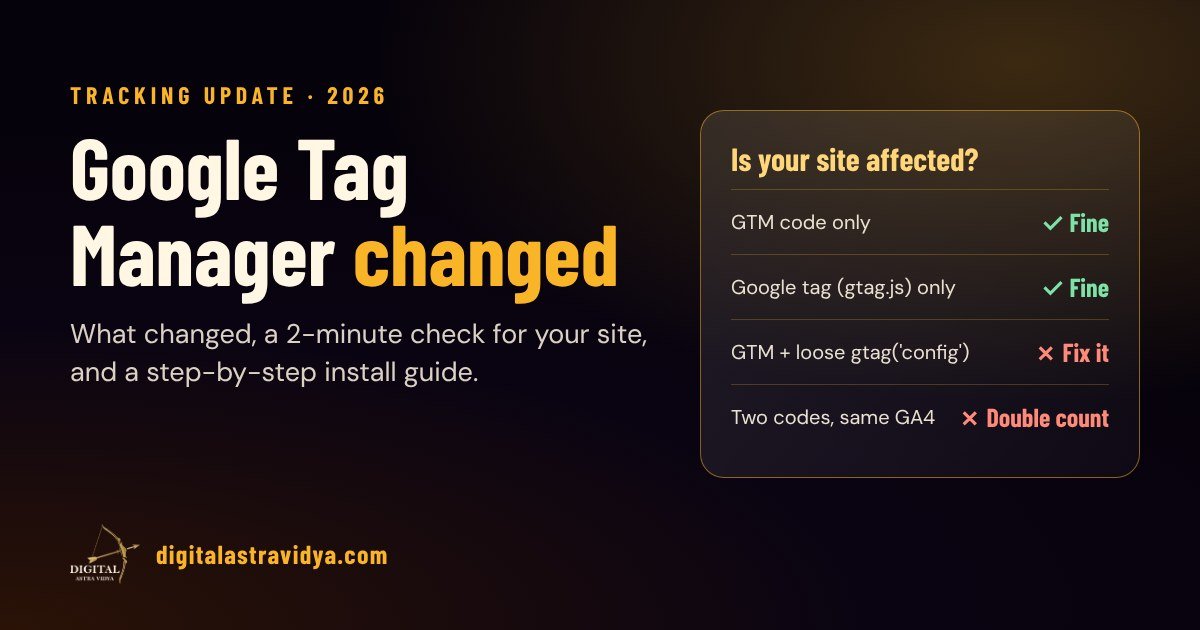
Short answer: In 2026 Google changed how Google Tag Manager (GTM) and the Google tag work. The biggest change took effect on 8 October 2026: every GTM container now starts as soon as it loads, without waiting for a gtag('config') line in your website code. If your site uses the standard GTM install code, or the standard Google tag (gtag.js) code, you are fine. If your site mixes the GTM code with loose gtag('config', 'G-…') lines, your tracking may now behave differently and should be fixed. Below we explain what changed, how to check your site in 2 minutes, and how to install GTM correctly, step by step.
What changed in Google Tag Manager in 2026
1. Containers now start on load (8 October 2026)
Until now, some websites relied on a gtag('config') command to “wake up” their tags. Google’s release note of 8 October 2026 says that all Google Tag Manager (gtm.js) container snippets now initialise when the container loads, regardless of any gtag('config') commands. Those config commands now show up in the data layer as a separate gtag.config event.
Two effects matter for most businesses:
- Unsupported setups may break. Sites that load the GTM code and then add separate
gtag('config', 'G-…')orgtag('config', 'AW-…')lines, without the proper gtag.js code, were never an official setup. Google now recommends using the full Google tag (gtag.js) code on those pages instead. - “All events” triggers may fire one extra time. If your container has a custom event trigger that matches every event (for example the pattern
.*), it will now also fire on the newgtag.configevent.
2. The container ID now decides what can run (9 July 2026)
A container with a GTM- ID can run any tag, including Meta, LinkedIn and custom HTML tags. A G- (Google Analytics) or AW- (Google Ads) ID can only run Google’s own tags and variables. If you use non-Google tags, make sure they sit in a GTM- container.
3. The Google tag and Tag Manager are merging
Google has announced that Google tags (G- and AW- IDs) are being upgraded into full Tag Manager containers. Google says this does not change how your existing tags behave on the page, but you get Tag Manager features such as preview, version history and a new Settings tab. Triggers, variables, templates and folders move into an Advanced tab. Google is rolling this out in stages, so your account may not show it yet.
Google also says new install snippets will no longer include a gtag('config') line. Instead, a new gtm init trigger inside the container controls when it starts. Existing snippets keep working, so you do not need to replace code that already works.
4. “Optimise container” is optional (12 October 2026)
Existing GTM containers can now be optimised so that GTM sends data directly to Google Analytics and Google Ads without loading the extra gtag.js script. Google presents this as a speed and simplicity improvement. It is opt-in: nothing changes unless someone with publish access accepts it.
Key changes at a glance
| Change | Date | Do I need to act? |
|---|---|---|
| Containers start on load, ignoring gtag(‘config’) | 8 Oct 2026 | Only if your site mixes the GTM code with loose gtag(‘config’) lines, or uses “all events” triggers |
| Container ID decides what tags can run | 9 Jul 2026 | Only if non-Google tags are loaded through a G- or AW- ID |
| Google tag and GTM merge | Rolling out in 2026 | No, but expect a new interface |
| Optimise container | 12 Oct 2026 | Optional. Test before accepting |
Check your website in 2 minutes
- Open your website in Chrome and press Ctrl + U (Windows) or Cmd + Option + U (Mac) to view the page source.
- Press Ctrl + F and search for each of these:
gtm.js,gtag/jsandgtag('config'. - Compare what you find with the table below.
| What you find | What it means | What to do |
|---|---|---|
| Only gtm.js (a GTM-XXXXXXX ID) and no gtag(‘config’) lines | Standard GTM setup | Nothing urgent. Check in Preview that each tag fires once |
| Only gtag/js with a G- or AW- ID and its gtag(‘config’) line | Standard Google tag setup | Nothing urgent. Your tag will gain a Tag Manager workspace |
| gtm.js plus loose gtag(‘config’, ‘G-…’) lines, but no gtag/js | Unsupported setup, affected by the October change | Remove the loose config lines and set up GA4 inside GTM (steps below) |
| Both gtm.js and gtag/js sending to the same GA4 property | Likely double counting | Keep one method. If you use GTM, remove the separate gtag.js code |
A WordPress tip: tracking code is often added by several plugins at once (for example an SEO plugin, Site Kit and a header-code plugin). Check each plugin’s settings so that only one of them adds your Google codes.
How to install Google Tag Manager: step-by-step guide
Step 1: Create your GTM account and container
- Go to tagmanager.google.com and sign in with your business Google account.
- Click Create Account. Enter your business name as the account name and choose your country.
- Under Container, enter your website address (for example yourbusiness.com) and choose Web as the target platform.
- Click Create and accept the terms.
Step 2: Copy your install code
GTM now shows the installation code. You can open it again any time from Admin → Install Google Tag Manager. Your container ID looks like GTM-XXXXXXX.
Always copy the exact code that your GTM account shows you, rather than code from a blog post, because Google is updating the snippet. Traditionally it has two parts:
- Part 1 goes as high as possible inside the
<head>of every page. - Part 2 (a
<noscript>code) goes immediately after the opening<body>tag.
If your account shows only one part, add just that part to the <head>.
Step 3: Add the code to your website
Choose only one of the options below, so the code is not added twice.
Option A: WordPress with a GTM plugin (easiest)
- In WordPress, go to Plugins → Add New, search for GTM4WP and click Install, then Activate.
- Open the plugin’s settings (under Settings → Google Tag Manager).
- Paste your GTM-XXXXXXX ID and save. The plugin adds both parts of the code for you.
Option B: WordPress with a header and footer code plugin
- Install a plugin such as WPCode (Insert Headers and Footers).
- Paste Part 1 into the Header box and Part 2 into the Body box.
- Save.
Option C: WordPress with Site Kit by Google
- Install and connect Site Kit by Google with the same Google account.
- Connect the Tag Manager service and select your container. Site Kit places the code for you.
Option D: Other website builders
- Shopify, Wix, Squarespace and similar builders have their own settings for Google Tag Manager or custom code. Look for “Google Tag Manager”, “Custom code” or “Tracking code” in the site settings.
- Hand-coded websites: paste Part 1 into the
<head>and Part 2 right after<body>in your page template, so they appear on every page.
Step 4: Add Google Analytics 4 inside GTM
- In Google Analytics, go to Admin → Data streams, open your web stream and copy the Measurement ID (it starts with G-).
- In GTM, go to Tags → New. Click Tag Configuration and choose Google Tag.
- Paste your G- ID in the Tag ID field.
- Under Triggering, choose Initialization – All Pages.
- Name the tag (for example “GA4 – Google tag”) and click Save.
If your container already shows the new Settings tab, Google may list your Google tag and its destinations there. Check it before adding a second Google tag.
Step 5: Test before publishing
- In GTM, click Preview, enter your website address and click Connect. Your site opens with Tag Assistant attached.
- Browse a few pages. In Tag Assistant, check that your Google tag shows under Tags Fired, and that it fires once per page.
- In Google Analytics, open Reports → Realtime or Admin → DebugView and check that your visit appears.
Step 6: Publish
- In GTM, click Submit.
- Give the version a clear name, such as “GA4 installed via GTM”, and click Publish.
Step 7: Remove old or duplicate codes
If your website also has an older gtag.js code or loose gtag('config') lines for the same GA4 property, remove them now. Then repeat the 2-minute check above to confirm that only your GTM code remains.
Should you accept “Optimise container”?
There is no rush. Optimisation is optional, and existing containers keep working. If you want to try it:
- Note your current published version number so you can roll back.
- Remove old or duplicate Google tags first.
- Run the change in a separate workspace and test it in Preview, including how your cookie consent banner behaves.
- After publishing, compare your GA4 and Google Ads numbers with the previous weeks.
Frequently asked questions
Do I need to reinstall Google Tag Manager because of the 2026 changes?
No, not if you use the standard GTM install code. Google says existing snippets keep working. You only need to act if your site mixes the GTM code with loose gtag(‘config’) lines, loads the same GA4 property twice, or uses triggers that match every event.
What changed in Google Tag Manager on 8 October 2026?
All Google Tag Manager (gtm.js) containers now initialise when they load, regardless of gtag(‘config’) commands. Those commands now appear in the data layer as a gtag.config event, which can fire custom event triggers that match all events.
What is the difference between Google Tag Manager and the Google tag?
The Google tag (gtag.js) sends data to Google products such as Google Analytics and Google Ads. Google Tag Manager is a container that manages many tags, including non-Google tags such as Meta or LinkedIn. In 2026 Google began merging the two, so Google tags are being upgraded into Tag Manager containers.
Should I click “Optimise container” in Google Tag Manager?
It is optional. Optimisation lets GTM send data directly to Google products without loading extra gtag.js code. Test it in a separate workspace with Preview, check your consent settings, and compare your data after publishing.
How do I check whether my website has the right GTM setup?
View your page source and search for gtm.js, gtag/js and gtag(‘config’. A single GTM code with no loose gtag(‘config’) lines, or a single standard gtag.js code, is fine. A GTM code combined with loose gtag(‘config’) lines, or two codes sending to the same GA4 property, should be fixed.
Related reading
- How to Read a Google Analytics (GA4) Dashboard
- Marketing Attribution Models Explained
- Full-Funnel Measurement Strategy
Not sure whether your tracking is set up correctly? Our analytics and conversion tracking service covers GA4, Google Tag Manager and ad conversion tracking. You can also learn to set it up yourself in our live online training.
Sources
- Release notes for Google Tag Manager, Google
- Google forces sites mixing GTM snippets and gtag(‘config’) onto gtag.js, PPC Land
- Google Tag Manager and Google tag are merging: what actually changes, PPC Land
- Google Tag Manager Update 2026: What Changes and What to Do, Digital Polygon
- Google Tag Manager seems to have a new container install snippet, Adriaan Dekker